> ## Documentation Index
> Fetch the complete documentation index at: https://vastai-80aa3a82-examples-openclaw-openai-serverless.mintlify.site/llms.txt
> Use this file to discover all available pages before exploring further.
# PyTorch
# Running PyTorch on Vast.ai: A Complete Guide
## Introduction
This guide walks you through setting up and running PyTorch workloads on Vast.ai, a marketplace for renting GPU compute power. Whether you're training large models or running inference, this guide will help you get started efficiently.
## Prerequisites
* A Vast.ai account
* Basic familiarity with PyTorch
* [Install TLS Certificate for Jupyter](/guides/instances/jupyter)
* [(Optional) SSH client installed on your local machine and SSH public key added in Account tab at cloud.vast.ai](/guides/instances/sshscp)
* [(Optional) Install and use vast-cli](/cli/hello-world)
* [(Optional) Docker knowledge for custom environments](https://docs.docker.com/get-started/)
## Setting Up Your Environment
### 1. Selecting PyTorch Template
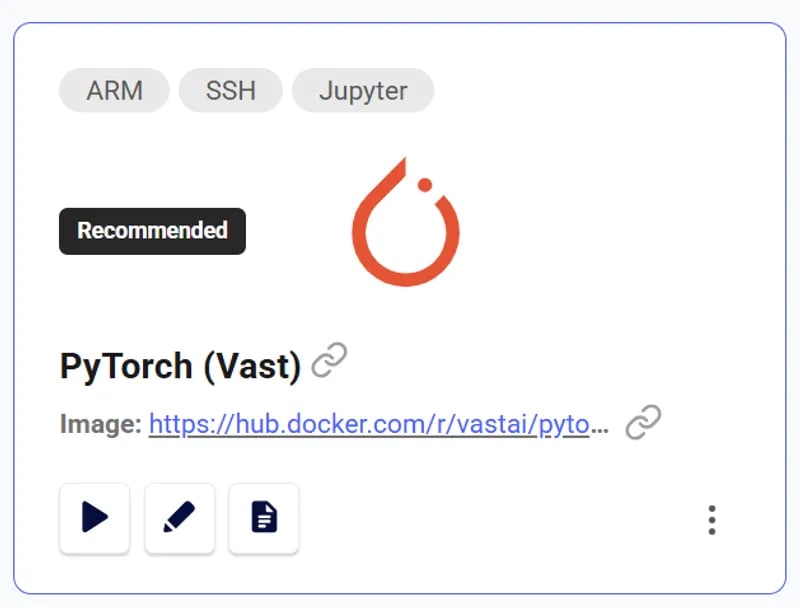
Navigate to the [Templates tab](https://cloud.vast.ai/templates/) to view available templates. Before choosing a specific instance, you'll need to select the appropriate PyTorch template for your needs:
* **Choose recommended** [**PyTorch**](https://cloud.vast.ai?ref_id=62897\&template_id=a33b72bd045341cfcd678ce7c932a614) **template:**
* A container is built on the Vast.ai base image, inheriting its core functionality
* It provides a flexible development environment with pre-configured libraries
* PyTorch is pre-installed at `/venv/main/` for immediate use
* Supports for both **AMD64** and **ARM64**(Grace) architectures, especially on CUDA 12.4+
* You can select specific PyTorch versions via the Version Tag selector
 ### 2. Choosing an Instance
Click the play button to select the template and see GPUs you can rent. For PyTorch workloads, consider:
* GPU Memory: Minimum 8GB for most models
* CUDA Version: PyTorch 2.0+ works best with CUDA 11.7 or newer
* Disk Space: Minimum 50GB for datasets and checkpoints
* Internet Speed: Look for instances with >100 Mbps for dataset downloads
Rent the GPU of your choice.
### 3. Connecting to Your Instance
Click blue button on instance card in Instances tab when it says "Open" to access Jupyter.
## Setting Up Your PyTorch Environment
### 1. Basic Environment Check
Open Python's Interactive Shell in the jupyter terminal
### 2. Choosing an Instance
Click the play button to select the template and see GPUs you can rent. For PyTorch workloads, consider:
* GPU Memory: Minimum 8GB for most models
* CUDA Version: PyTorch 2.0+ works best with CUDA 11.7 or newer
* Disk Space: Minimum 50GB for datasets and checkpoints
* Internet Speed: Look for instances with >100 Mbps for dataset downloads
Rent the GPU of your choice.
### 3. Connecting to Your Instance
Click blue button on instance card in Instances tab when it says "Open" to access Jupyter.
## Setting Up Your PyTorch Environment
### 1. Basic Environment Check
Open Python's Interactive Shell in the jupyter terminal
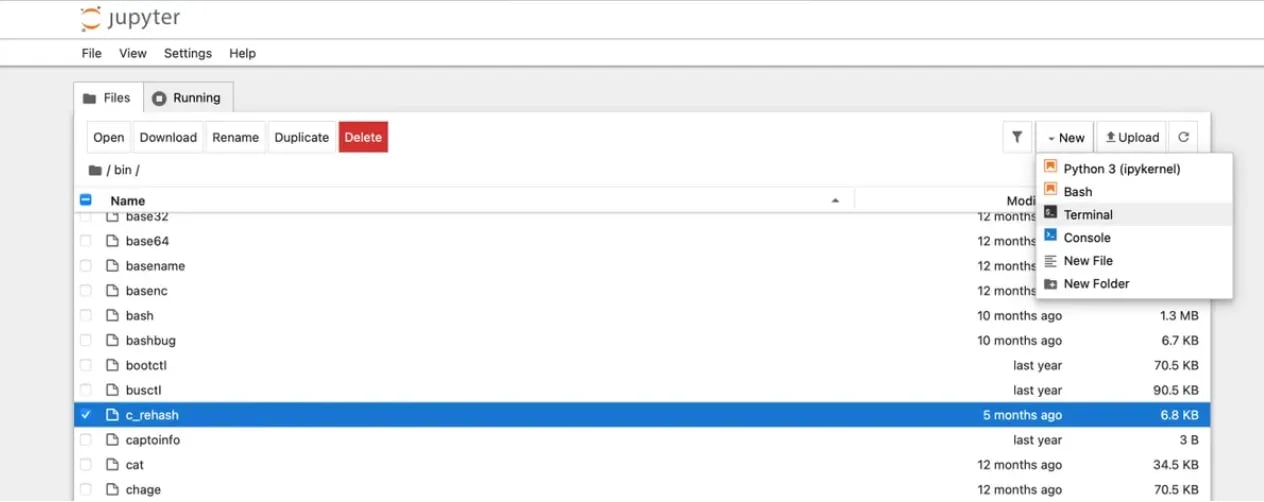
 Verify your setup by executing these commands in Python's Interactive Shell in a Jupyter terminal:
```python icon="python" Python icon="python" Python theme={null}
import torch
print(f"PyTorch version: {torch.__version__}")
print(f"CUDA available: {torch.cuda.is_available()}")
print(f"GPU device: {torch.cuda.get_device_name(0)}")
```
### 2. Data Management
For efficient data handling:
a) Fast local storage:
```bash theme={null}
mkdir /workspace/data
cd /workspace/data
```
b) Dataset downloads:
```bash theme={null}
# Using wget
wget your_dataset_url
# Using git lfs for larger files: https://git-lfs.com/
sudo apt-get install git-lfs
git lfs install
git clone your_dataset_repo
```
## Training Best Practices
### Checkpoint Management
Always save checkpoints to prevent data loss:
```python icon="python" Python theme={null}
checkpoint_dir = '/workspace/checkpoints'
os.makedirs(checkpoint_dir, exist_ok=True)
checkpoint = {
'epoch': epoch,
'model_state_dict': model.state_dict(),
'optimizer_state_dict': optimizer.state_dict(),
'loss': loss,
}
torch.save(checkpoint, f'{checkpoint_dir}/checkpoint_{epoch}.pt')
```
### Resource Monitoring
Monitor GPU usage:
```bash theme={null}
watch -n 1 nvidia-smi
```
Or in Python:
```python icon="python" Python theme={null}
def print_gpu_utilization():
print(torch.cuda.memory_allocated() / 1024**2, "MB Allocated")
print(torch.cuda.memory_reserved() / 1024**2, "MB Reserved")
```
## Cost Optimization
### Instance Selection
* Use [vast cli search offers command ](https://vast.ai/docs/cli/reference/search-offers)to search for machines that fit your budget
* Monitor your spending in Vast.ai's Billing tab
### Resource Utilization
* Use appropriate batch sizes to maximize GPU utilization
* Enable gradient checkpointing for large models
* Implement early stopping to avoid unnecessary compute time
## Troubleshooting
### Common Issues and Solutions
* Out of Memory (OOM) Errors
* Reduce batch size
* Enable gradient checkpointing
* Use mixed precision training
```python icon="python" Python theme={null}
from torch.cuda.amp import autocast, GradScaler
scaler = GradScaler()
with autocast():
outputs = model(inputs)
loss = criterion(outputs, labels)
scaler.scale(loss).backward()
```
* Slow Training
* Check GPU utilization
* Verify data loading pipeline
* Consider using `torch.compile()` for PyTorch 2.0+
```python icon="python" Python theme={null}
model = torch.compile(model)
```
* Connection Issues
* Use `tmux` or `screen` for persistent sessions
* Set up automatic reconnection in your SSH config
## Best Practices
### Environment Management
* Document your setup and requirements
* Keep track of software versions
### Data Management
* Use data versioning tools
* Implement proper data validation
* Set up efficient data loading pipelines
### Training Management
* Implement logging (e.g., WandB, TensorBoard)
* Set up experiment tracking
* Use configuration files for hyperparameters
## Advanced Topics
### Multi-GPU Training
For distributed training:
```python icon="python" Python theme={null}
model = torch.nn.DataParallel(model)
```
### Mixed Precision Training
Enable AMP for faster training:
```python icon="python" Python theme={null}
from torch.cuda.amp import autocast
with autocast():
outputs = model(inputs)
```
### Custom Docker Images
Create a custom Docker image from your own Dockerfile and [create your own template](https://vast.ai/docs/use-cases/create-your-own-template) as needed:
```dockerfile theme={null}
FROM pytorch/pytorch:2.1.0-cuda11.8-cudnn8-runtime
# Install additional dependencies
RUN pip install wandb tensorboard
# Add your custom requirements
COPY requirements.txt .
RUN pip install -r requirements.txt
```
## Conclusion
Running PyTorch on Vast.ai provides a cost-effective way to rent cheap GPUs and accelerate deep learning workloads. By following this guide and best practices, you can efficiently set up and manage your PyTorch workloads while optimizing costs and performance.
## Additional Resources
* [PyTorch Documentation](https://pytorch.org/docs/stable/index.html)
* [Vast.ai Documentation](/guides/get-started/index)
* [PyTorch Performance Tuning Guide](https://pytorch.org/tutorials/recipes/recipes/tuning_guide.html)
Verify your setup by executing these commands in Python's Interactive Shell in a Jupyter terminal:
```python icon="python" Python icon="python" Python theme={null}
import torch
print(f"PyTorch version: {torch.__version__}")
print(f"CUDA available: {torch.cuda.is_available()}")
print(f"GPU device: {torch.cuda.get_device_name(0)}")
```
### 2. Data Management
For efficient data handling:
a) Fast local storage:
```bash theme={null}
mkdir /workspace/data
cd /workspace/data
```
b) Dataset downloads:
```bash theme={null}
# Using wget
wget your_dataset_url
# Using git lfs for larger files: https://git-lfs.com/
sudo apt-get install git-lfs
git lfs install
git clone your_dataset_repo
```
## Training Best Practices
### Checkpoint Management
Always save checkpoints to prevent data loss:
```python icon="python" Python theme={null}
checkpoint_dir = '/workspace/checkpoints'
os.makedirs(checkpoint_dir, exist_ok=True)
checkpoint = {
'epoch': epoch,
'model_state_dict': model.state_dict(),
'optimizer_state_dict': optimizer.state_dict(),
'loss': loss,
}
torch.save(checkpoint, f'{checkpoint_dir}/checkpoint_{epoch}.pt')
```
### Resource Monitoring
Monitor GPU usage:
```bash theme={null}
watch -n 1 nvidia-smi
```
Or in Python:
```python icon="python" Python theme={null}
def print_gpu_utilization():
print(torch.cuda.memory_allocated() / 1024**2, "MB Allocated")
print(torch.cuda.memory_reserved() / 1024**2, "MB Reserved")
```
## Cost Optimization
### Instance Selection
* Use [vast cli search offers command ](https://vast.ai/docs/cli/reference/search-offers)to search for machines that fit your budget
* Monitor your spending in Vast.ai's Billing tab
### Resource Utilization
* Use appropriate batch sizes to maximize GPU utilization
* Enable gradient checkpointing for large models
* Implement early stopping to avoid unnecessary compute time
## Troubleshooting
### Common Issues and Solutions
* Out of Memory (OOM) Errors
* Reduce batch size
* Enable gradient checkpointing
* Use mixed precision training
```python icon="python" Python theme={null}
from torch.cuda.amp import autocast, GradScaler
scaler = GradScaler()
with autocast():
outputs = model(inputs)
loss = criterion(outputs, labels)
scaler.scale(loss).backward()
```
* Slow Training
* Check GPU utilization
* Verify data loading pipeline
* Consider using `torch.compile()` for PyTorch 2.0+
```python icon="python" Python theme={null}
model = torch.compile(model)
```
* Connection Issues
* Use `tmux` or `screen` for persistent sessions
* Set up automatic reconnection in your SSH config
## Best Practices
### Environment Management
* Document your setup and requirements
* Keep track of software versions
### Data Management
* Use data versioning tools
* Implement proper data validation
* Set up efficient data loading pipelines
### Training Management
* Implement logging (e.g., WandB, TensorBoard)
* Set up experiment tracking
* Use configuration files for hyperparameters
## Advanced Topics
### Multi-GPU Training
For distributed training:
```python icon="python" Python theme={null}
model = torch.nn.DataParallel(model)
```
### Mixed Precision Training
Enable AMP for faster training:
```python icon="python" Python theme={null}
from torch.cuda.amp import autocast
with autocast():
outputs = model(inputs)
```
### Custom Docker Images
Create a custom Docker image from your own Dockerfile and [create your own template](https://vast.ai/docs/use-cases/create-your-own-template) as needed:
```dockerfile theme={null}
FROM pytorch/pytorch:2.1.0-cuda11.8-cudnn8-runtime
# Install additional dependencies
RUN pip install wandb tensorboard
# Add your custom requirements
COPY requirements.txt .
RUN pip install -r requirements.txt
```
## Conclusion
Running PyTorch on Vast.ai provides a cost-effective way to rent cheap GPUs and accelerate deep learning workloads. By following this guide and best practices, you can efficiently set up and manage your PyTorch workloads while optimizing costs and performance.
## Additional Resources
* [PyTorch Documentation](https://pytorch.org/docs/stable/index.html)
* [Vast.ai Documentation](/guides/get-started/index)
* [PyTorch Performance Tuning Guide](https://pytorch.org/tutorials/recipes/recipes/tuning_guide.html)